

 By
By Introduction
Having your Brother printer start printing black pages can disrupt your routine and efficiency, especially when you rely heavily on it for important tasks. The key to resolving this issue lies in understanding its causes and applying effective troubleshooting techniques. This comprehensive guide provides step-by-step solutions to help you address the problem and restore your printer’s functionality.
Understanding Why Your Brother Printer is Printing Black Pages
When black pages appear in your prints, it can be due to several factors, ranging from hardware failures to incorrect settings. Common causes include issues with the toner cartridge, drum unit, or software configurations. By identifying these potential problems, you can determine the best course of action to fix them effectively, leading us to our initial diagnostic process.
Initial Diagnostic Steps
Before delving into more detailed solutions, start with basic checks to identify the problem source:
- Power Cycle the Printer: Turn off, unplug, wait for a few minutes, and then turn the printer back on. This can resolve minor glitches.
- Conduct a Test Print: Use the printer’s control panel to print a test page. This helps verify whether the issue persists, giving clues about potential causes.
- Check for Paper and Hardware Issues: Inspect the printer for paper jams or visible obstructions. Ensure that all parts are properly aligned and securely installed.
These initial steps often reveal straightforward issues that can be resolved easily, confirming the need to assess the hardware components further.
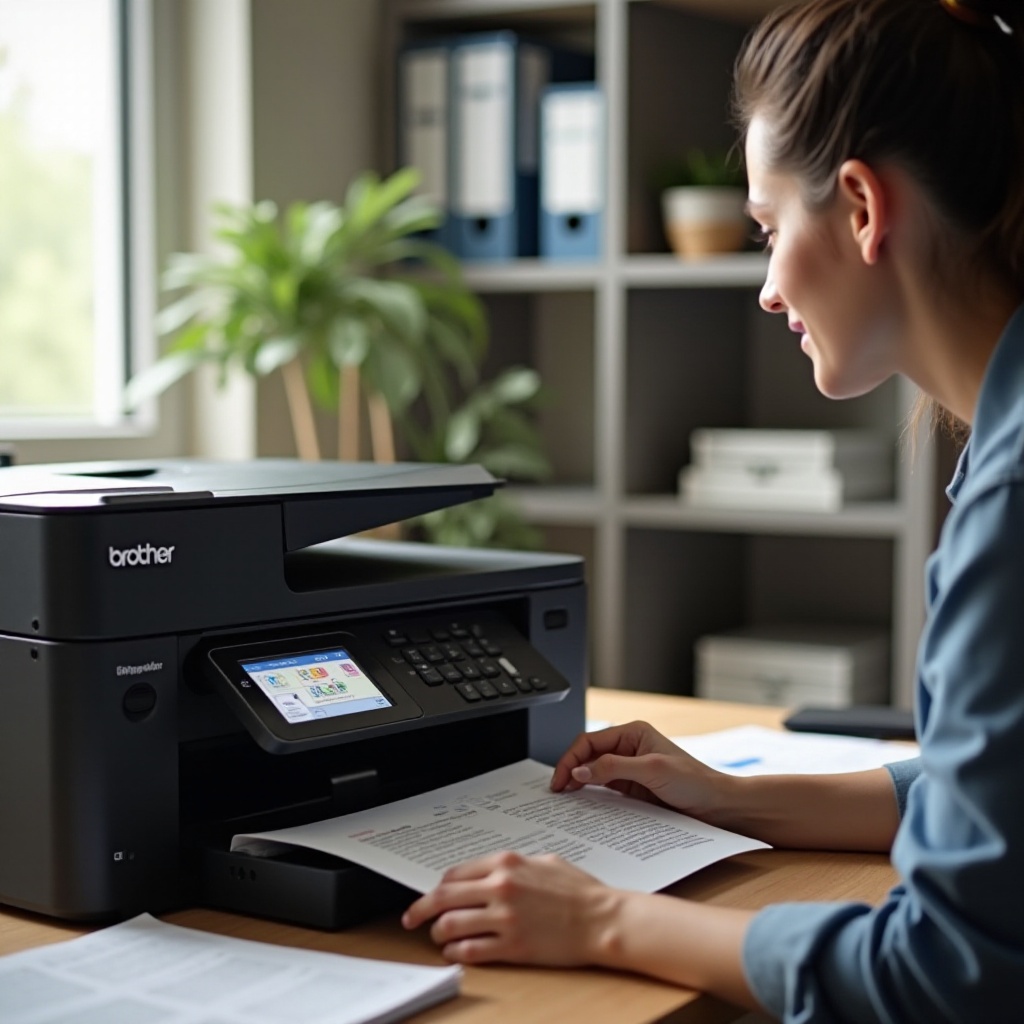
Inspecting and Maintaining Printer Components
If initial diagnostics do not resolve the issue, it is crucial to inspect the printer’s primary components, particularly the toner cartridge and drum unit, which are commonly problematic areas.
- Toner Cartridge Issues:
- Ensure the toner cartridge is installed correctly. Reinsert it if necessary.
-
Check for low or empty toner levels and replace the cartridge if needed.
-
Drum Unit Problems:
- Inspect for visible damage or signs of wear on the drum. Gently clean it using a lint-free cloth if dirty.
- If cleaning is ineffective, consider replacing the drum unit, especially if it has been in use for a long time.
Regular maintenance of these components can prevent many issues and enhance print quality, seamlessly transitioning to checking printer settings.
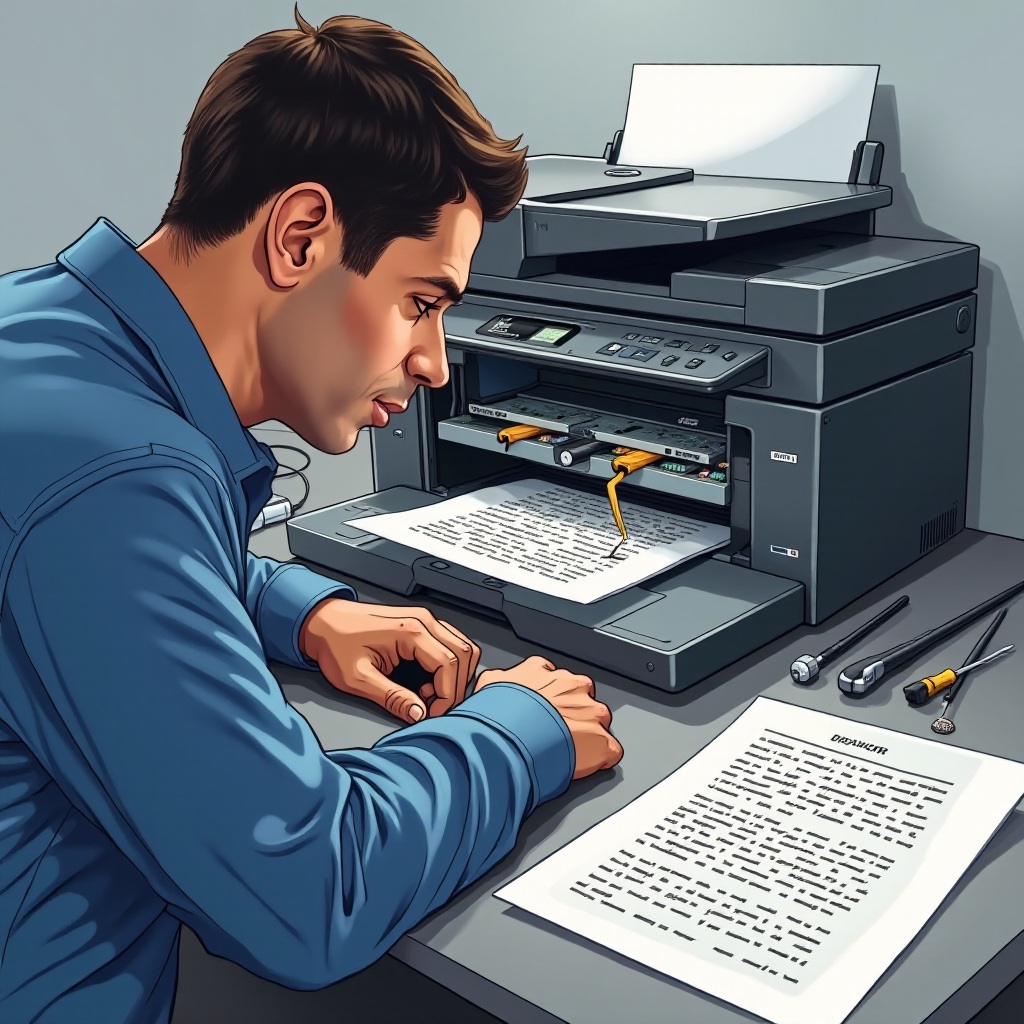
Adjusting Printer Settings to Solve Black Page Issues
Sometimes, the problem lies in incorrect printer settings, which can be resolved as follows:
- Correcting Printer Software Settings: Access printer settings via your computer. Ensure print quality settings are correct and reset to default if needed to resolve configuration errors.
- Reinstalling or Updating Printer Drivers: Outdated or corrupt drivers may cause issues. Visit Brother’s website for the latest drivers compatible with your printer model.
Adjusting these software elements can correct issues related to setup, preparing you for more advanced troubleshooting if problems persist.
Advanced Troubleshooting for Persistent Issues
If previous steps don’t solve the problem, employ advanced troubleshooting:
- Checking for Firmware Updates: Firmware updates can fix bugs and enhance printer performance. Search for updates on Brother’s support site.
- Specialist Support and Repairs: If the issue continues, contact Brother support or a professional technician. Provide details of your troubleshooting steps to assist the service professional.
This takes us to considering preventative measures to maintain printer performance and avoid future issues.
Preventative Measures to Avoid Future Black Printing Issues
Preventing black page issues requires regular care and quality supplies. Consider these measures:
- Regular Maintenance: Schedule routine cleaning and servicing of your printer components to ensure they remain in good condition.
- Use of Quality Supplies: Always use recommended toner cartridges and drum units for your Brother printer. Non-compatible or low-quality supplies can lead to issues, including black pages.
By maintaining a consistent upkeep routine and using the correct supplies, you can ensure a trouble-free printing experience.
Conclusion
Confronted with a Brother printer that prints black pages can be daunting, but this guide can help you resolve the issue promptly and effectively. Regular maintenance and careful attention to the printer’s components and settings ensure your machine operates smoothly. By understanding the issue’s causes and applying these troubleshooting steps, you foster reliable and efficient printing.
Frequently Asked Questions
Why does my Brother printer only print black pages?
This issue could stem from toner cartridge problems, drum unit malfunctions, or incorrect printer settings. Check each component and setting to diagnose and resolve the issue.
How often should I replace the drum unit in my Brother printer?
Typically, drum units last around 10,000 to 15,000 pages, but this varies depending on usage. Refer to your printer’s manual for specific recommendations.
What should I do if changing the cartridge doesn’t stop the black pages?
If replacing the cartridge doesn’t help, check the drum unit, update drivers, and consider a firmware update. Seek professional assistance if the issue persists.