

 By
By Introduction
Facing a water spill on your MacBook Air is undeniably stressful. This guide is here to help you take swift action with immediate steps, effective drying methods, and long-term preventative strategies to protect your device from future mishaps. Knowing how to respond quickly can determine whether your MacBook survives the incident unscathed or sustains serious damage.
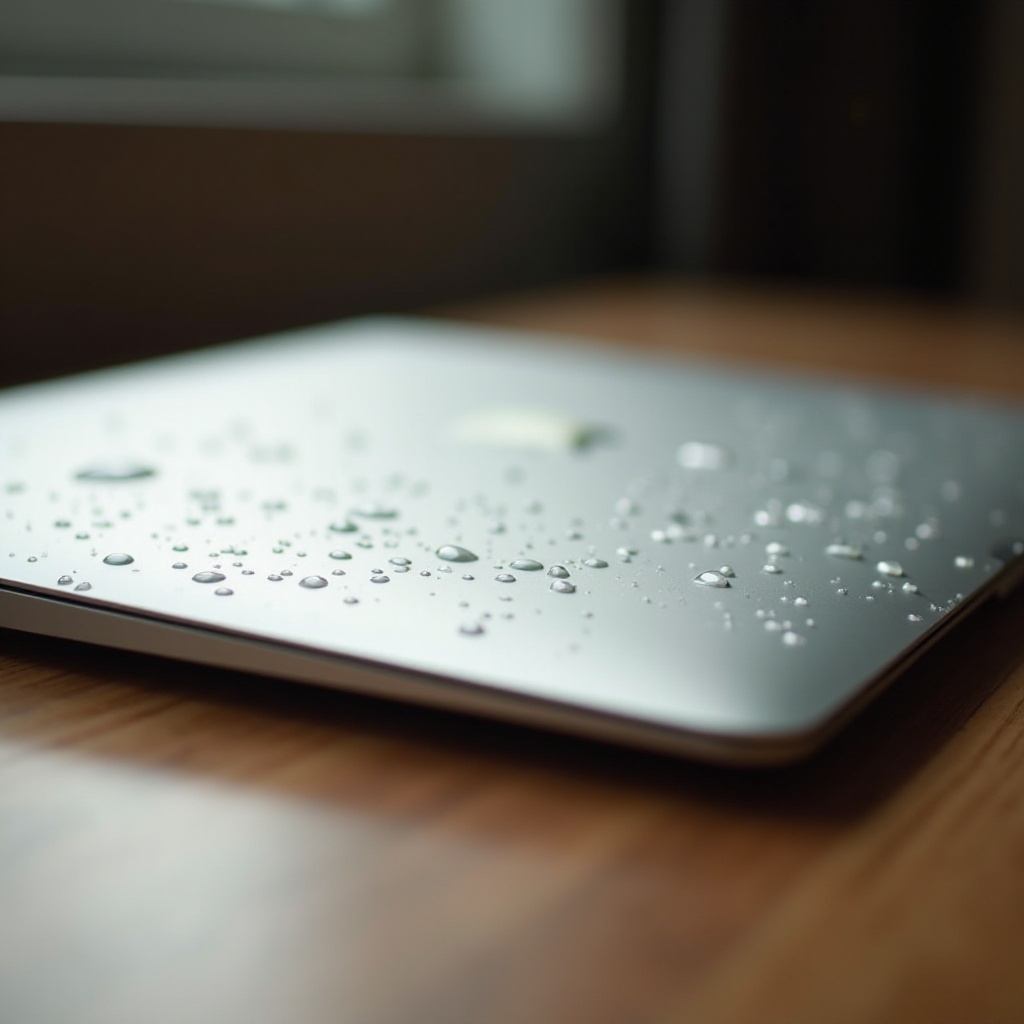
Immediate Steps to Take
When water spills on your MacBook Air, it’s crucial to act immediately:
-
Unplug and Power Off: Instantly disconnect your MacBook from its power source and hold down the power button to shut it off. This helps minimize any risk of short-circuiting.
-
Remove Accessories: Detach all connected accessories such as USB drives and headphones to prevent water from seeping into the ports and damaging them.
-
Dry the Surface: Use a lint-free cloth or a paper towel to gently dab away moisture from the MacBook’s surface. Avoid rubbing, as this can force water deeper into the device.
-
Position for Drainage: Place your MacBook Air in an inverted V or “tent” position on a towel. This encourages residual water to drain out naturally.
Executing these steps quickly can significantly enhance the odds of your MacBook avoiding lasting damage. Next, let’s delve into the best techniques for effectively drying your laptop.
Drying Techniques
Ensuring thorough drying is essential to prevent moisture from damaging the internal components of your MacBook Air.
-
Natural Air Drying: After patting it dry, allow your MacBook Air to air dry in a ventilated space. Resist using hairdryers or heaters, as excessive heat can damage components.
-
Desiccants and Rice: Place your device in an airtight environment with silica gel packets or rice. These materials help draw out moisture over an extended period.
-
Use a Fan: Position a fan to circulate air around the device for a consistent and gentle drying process.
Once you’ve given your MacBook adequate time to dry, it’s important to assess any potential damage that may have occurred.
Assessing the Damage
After drying, carefully inspect your MacBook Air for signs of damage:
-
Visual Inspection: Look for water stains, corrosion on ports, or changes in color around the keyboard and screen.
-
Operational Check: Turn the device on and monitor its performance. Note any unusual behaviors, noises, or display issues.
Understanding the extent of the damage will inform whether professional repair services might be necessary.
Seeking Professional Repair Services
If you observe problems persisting or see considerable damage despite your best efforts, consulting a professional is advisable:
-
Professional Evaluation: Visit an authorized service provider or a repair shop specializing in Apple products. Technicians can conduct thorough examinations and recommend repair options.
-
Repair Costs: Keep in mind that water damage is rarely covered by the standard warranty, so weigh the costs of repair against replacement if necessary.
Having a professional technician diagnose and resolve any issues ensures that your MacBook Air receives the best possible care. Moving forward, let’s discuss ways to prevent such incidents from occurring in the future.

Preventive Measures for Future Protection
To avoid encountering similar issues again, adopt these preventive measures:
-
Protective Accessories: Invest in durable waterproof cases and keyboard covers to add a layer of defense against accidental spills.
-
Safe Workspace Setup: Rearrange your workspace to keep liquids at a safe distance, and opt for spill-proof bottles or cups.
Preventive measures like these can substantially reduce the risk of water spilling on your MacBook Air. Besides physical protections, safeguarding your data with a robust backup strategy is equally important.
Creating a Backup Strategy
In the event of any mishap, data loss is a significant concern. Regular backups ensure that your files remain secure:
-
Regular Backups: Utilize Time Machine for systematic backups onto an external hard drive.
-
Cloud Storage: Keep your data secure and accessible with cloud storage solutions such as iCloud, Google Drive, or Dropbox.
With a reliable data backup plan, you can ensure that your digital life remains uninterrupted even if your device encounters an issue.
Conclusion
Spilling water on your MacBook Air can be alarming, but knowing how to act quickly can mitigate damage. From initial steps and drying techniques to evaluating damage and implementing preventive measures, this guide aims to provide comprehensive support. Remember, vigilance and preparedness are your best defenses against future spills.
Frequently Asked Questions
What should I do immediately after spilling water on my MacBook Air?
Unplug it, turn it off, disconnect accessories, dry the surface, and position it to drain.
How can I tell if my MacBook Air has water damage?
Look for visible stains, corrosion, and check for unusual behavior or display issues.
Is it worth repairing a water-damaged MacBook Air?
Consult a professional for an evaluation. Consider repair costs and device age when deciding.