

 By
By Introduction
Maintaining optimal thermal performance is crucial for the longevity and efficiency of your laptop. Thermal paste, an often-overlooked component, serves as a vital bridge for heat transfer between the CPU or GPU and its heat sink. Over time, this paste can degrade, leading to inefficient cooling and potential hardware issues. This comprehensive guide will walk you through the process of changing the thermal paste to keep your laptop performing at its best.

Understanding Thermal Paste
What is Thermal Paste?
At its core, thermal paste is a thermally conductive compound that helps facilitate efficient heat transfer from the CPU or GPU to the heat sink, ensuring stable performance.
Importance of Thermal Paste in Laptop Cooling
The efficiency of thermal paste diminishes over time, causing inadequate heat transfer and potentially overheating the laptop’s components. Regular maintenance with fresh thermal paste can prevent performance throttling and hardware damage, helping maintain system stability and longevity.
Signs It’s Time to Change Thermal Paste
Identifying Overheating Issues
Increased fan noise, excessive heat from the laptop exterior, and performance lags are common indicators that your laptop might be experiencing overheating issues, which can often be attributed to old thermal paste.
Effects of Old Thermal Paste on Performance
Old, dried-out thermal paste fails to efficiently conduct heat, causing internal temperatures to rise and potentially leading to throttled performance. By replacing it, you can restore the effective heat dissipating properties necessary for optimal laptop operation.
Types of Thermal Paste: Choosing the Right One
Ceramics vs. Metal vs. Carbon-Based Pastes
Choosing the appropriate thermal paste requires understanding the differences among ceramic, metal-based, and carbon-based options. Metal-based pastes offer superior thermal conductivity but must be applied with caution due to their electrical conductivity. Ceramic pastes, being non-conductive, are safer and more user-friendly, while carbon-based pastes strike a balance between performance and application ease.
Key Considerations When Choosing Thermal Paste
Consider factors like thermal conductivity, ease of application, and your own experience level. Beginners might find ceramic pastes easier to handle, while metal-based solutions are suited for advanced users seeking maximum performance.

Tools and Materials Needed
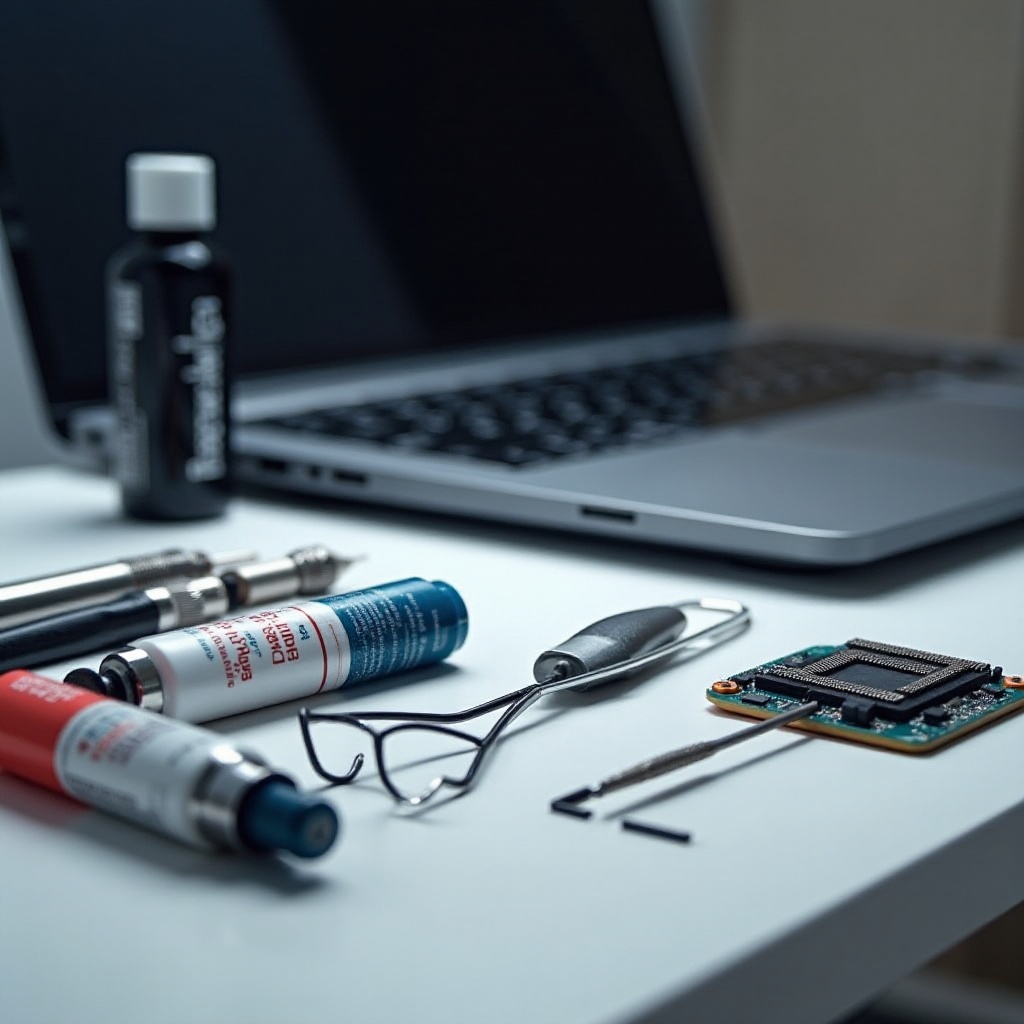
Before initiating the replacement process, ensure you have the necessary supplies at hand: a precision screwdriver set, isopropyl alcohol (90% or higher) for cleaning, cotton swabs, lint-free cloths or paper towels, your chosen thermal paste, and optionally, an anti-static wrist strap to prevent electrostatic discharges.
Preparing Your Laptop for Thermal Paste Replacement
Begin the replacement process by powering off your laptop and unplugging all power sources, including removable batteries. Use an anti-static wrist strap to eliminate the risk of static damage during the procedure.
Safety Precautions
Ensure your workspace is clean and static-free to prevent any dust or electrical damage while working on the laptop. Establish a setup with ample lighting and a non-conductive mat to maintain a safe environment.
Setting Up a Static-Free Workspace
Establish a static-free area by grounding yourself with an anti-static wrist strap. This preparation minimizes the risk of static electricity damaging sensitive laptop components during the disassembly.
Step-by-Step Process to Change Thermal Paste
Disassembling Your Laptop
- Access the internal components by removing screws from the laptop’s bottom panel.
- Gently separate the casing and carefully disconnect any cables linking the motherboard to other components.
- Identify and access the CPU/GPU and attached heat sink.
Removing Old Thermal Paste
- Saturate a cotton swab with isopropyl alcohol and gently wipe away the old thermal paste from both the CPU/GPU and the heat sink.
- Continue cleaning until all residue is removed, and allow surfaces to dry completely.
Applying New Thermal Paste
- Apply a pea-sized amount of thermal paste to the center of the CPU/GPU.
- Use an applicator or plastic card to evenly spread the paste across the surface, ensuring no air bubbles remain.
Reassembling Your Laptop
- Align and reseat the heat sink over the CPU/GPU. Secure it with screws tightly.
- Reconnect all previously disconnected cables and snap the casing back into place.
- Reinstall the screws and, if detached, reattach the battery.
Testing and Monitoring Post-Application
Once reassembled, power on your laptop and monitor temperature levels using software tools like HWMonitor or Core Temp. Ensure your laptop maintains optimal temperatures and performance under normal usage conditions.
Using Temperature Monitoring Tools
Employ monitoring software as a check to confirm temperatures stay within normal ranges during various loads, ensuring the thermal paste application was successful.
Ensuring Optimal Performance
Test your laptop’s performance by running resource-heavy applications to ascertain that it operates smoothly without overheating issues, confirming the success of the procedure.
Additional Tips for Long-Term Laptop Maintenance
Regular maintenance beyond thermal paste replacement, such as thorough cleaning, can significantly extend your laptop’s life span.
Regular Cleaning Practices
Dust accumulation can impede airflow and increase temperatures. Clean your laptop’s fans and vents every few months to maintain cooling efficiency.
Software Tips for Temperature Management
Leverage fan control software to adjust fan speeds according to needs and keep all hardware drivers updated to ensure they operate efficiently.
Conclusion
Taking proactive steps to change your laptop’s thermal paste is vital for preventing overheating and maintaining peak performance. With our step-by-step guide, you can confidently undertake this maintenance task and ensure your laptop continues to function optimally. Regular upkeep like this not only prolongs your device’s life but also enhances its operating efficiency.
Frequently Asked Questions
How often should I change the thermal paste on my laptop?
Generally, every 2 to 3 years is recommended, especially if under heavy use.
Can using the wrong thermal paste damage my laptop?
Yes, especially if it’s electrically conductive and contacts unintended areas.
Is it possible to change laptop thermal paste without voiding warranty?
It depends on the manufacturer’s policies, but often opening the case can void the warranty.