

 By
By Introduction
Switching your Chromebook from Chrome OS to Windows can vastly improve its versatility. Whether you’re looking to run specific Windows applications or prefer the Windows ecosystem, this guide will provide a clear pathway for installing Windows on your Chromebook. We’ll break down the process into manageable steps, starting with how to get your device ready.
Preparing Your Chromebook for Windows Installation
Before diving into the installation, ensure your Chromebook is primed for the transition. This preparation phase is critical to sidestep future headaches.
-
Checking Hardware Compatibility
Ensure your Chromebook meets the system requirements needed to run Windows effectively. Check for sufficient RAM, storage space, and processor compatibility. This step will save you from potential issues down the line. -
Backing Up Important Data
All data on your Chromebook will be erased during this process, so backing up your files to an external drive or cloud is essential. This safety net protects your files. -
Entering Developer Mode
The installation requires enabling Developer Mode on your Chromebook, which allows system modifications. Be prepared for the fact that enabling this mode will reset your device to factory settings, emphasizing the importance of your data backup.
With your preparations complete, gather the necessary software and tools for Windows installation.
Setting Up for Windows Installation
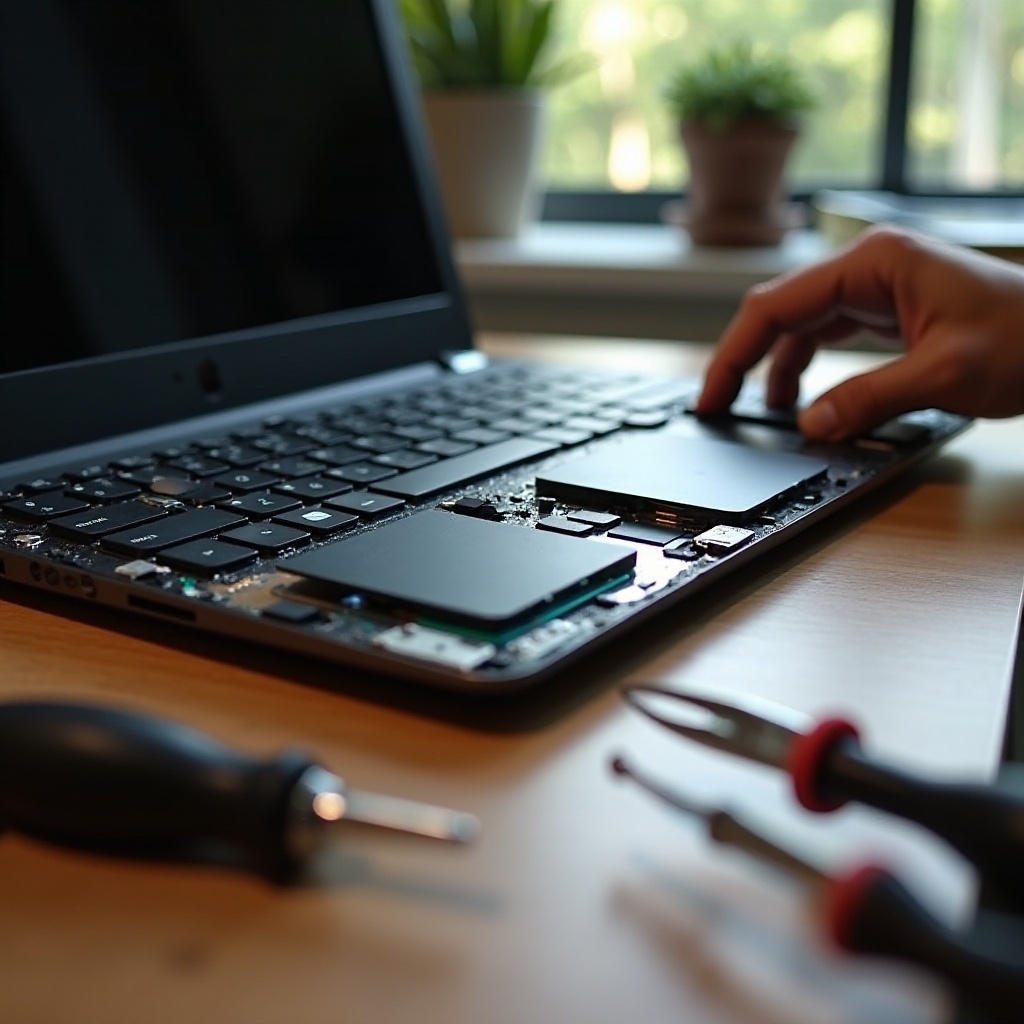
Setting up Windows involves acquiring the software and creating a bootable drive. With these tools, you’re ready to transform your Chromebook.
-
Downloading a Windows ISO File
Acquire the Windows ISO file from Microsoft’s official website. Choosing the right version of Windows helps ensure optimal performance on your hardware. -
Creating a Bootable USB Drive
Use a tool like Rufus to create a bootable USB drive from your Windows ISO. Insert your USB, open the tool, select your ISO, and begin. This drive will be your installation medium.
Having set up your tools, move on to installing Windows on your Chromebook.
Installing Windows on Your Chromebook
Performing the installation is straightforward with your groundwork laid. Follow these instructions to switch your operating system smoothly.
-
Accessing the Chromebook BIOS Menu
Insert your bootable USB drive and power on your Chromebook while holding the Esc + Refresh + Power buttons. This action takes you to the BIOS menu, where you can boot from your USB. -
Booting from USB
In the BIOS, select your USB drive. Your Chromebook will then begin loading the Windows setup files. If things appear frozen, patiently allow time for the process. -
Partitioning Your Hard Drive
During setup, partition your drive appropriately. Remove existing partitions and create one for Windows, formatted in NTFS, to continue installation.
Windows installation should now proceed, and with it, further configurations are necessary.
Post-Installation Configuration
After Windows is installed, ensure everything runs smoothly by setting up correctly.
-
Installing Necessary Drivers
Visit hardware manufacturers’ websites for the most recent drivers, ensuring compatibility with your Chromebook’s components. This step ensures full operational capability. -
Setting Up Windows for Optimal Performance
Tweak settings for performance by managing startup apps and optimizing power settings. Keep your system updated to ensure it stays secure and efficient.
Despite your efforts, issues can sometimes occur, which we will now address.
Troubleshooting Common Issues
Issues can arise during installation and operation; these tips will help resolve them.
-
Fixing Installation Errors
Encounter setup issues? Double-check your USB and ISO for integrity. Redoing these steps can often fix unexpected errors. -
Addressing Driver Problems
If some hardware isn’t working, seek community forums for alternate drivers and support guides to resolve hardware compatibility issues.
With these solutions, you should overcome most installation hurdles, ensuring you enjoy using Windows on your Chromebook.
Conclusion
Installing Windows on your Chromebook transforms it into a powerful, versatile device. By following the steps outlined, you can expand your Chromebook’s capabilities significantly. Enjoy your new Windows experience and the endless possibilities it brings.
Frequently Asked Questions
Can you install Windows on all Chromebook models?
Not all Chromebooks support Windows due to hardware and BIOS restrictions. Verify compatibility beforehand.
Will installing Windows void my Chromebook’s warranty?
Installing Windows may void the warranty depending on the manufacturer’s terms, so check their policy first.
Is it possible to dual-boot Chrome OS and Windows?
Dual-booting is technically feasible but complex, requiring advanced technical knowledge and caution.