

 By
Introduction
Struggling with PS4 controller connectivity can be exasperating, particularly when faced with the ‘try connecting your device again’ directive. This frequent annoyance often results from battery troubles, Bluetooth interference, or software hitches. We delve into pragmatic solutions tailored to these connectivity challenges, paving the way for an unhindered gaming encounter.
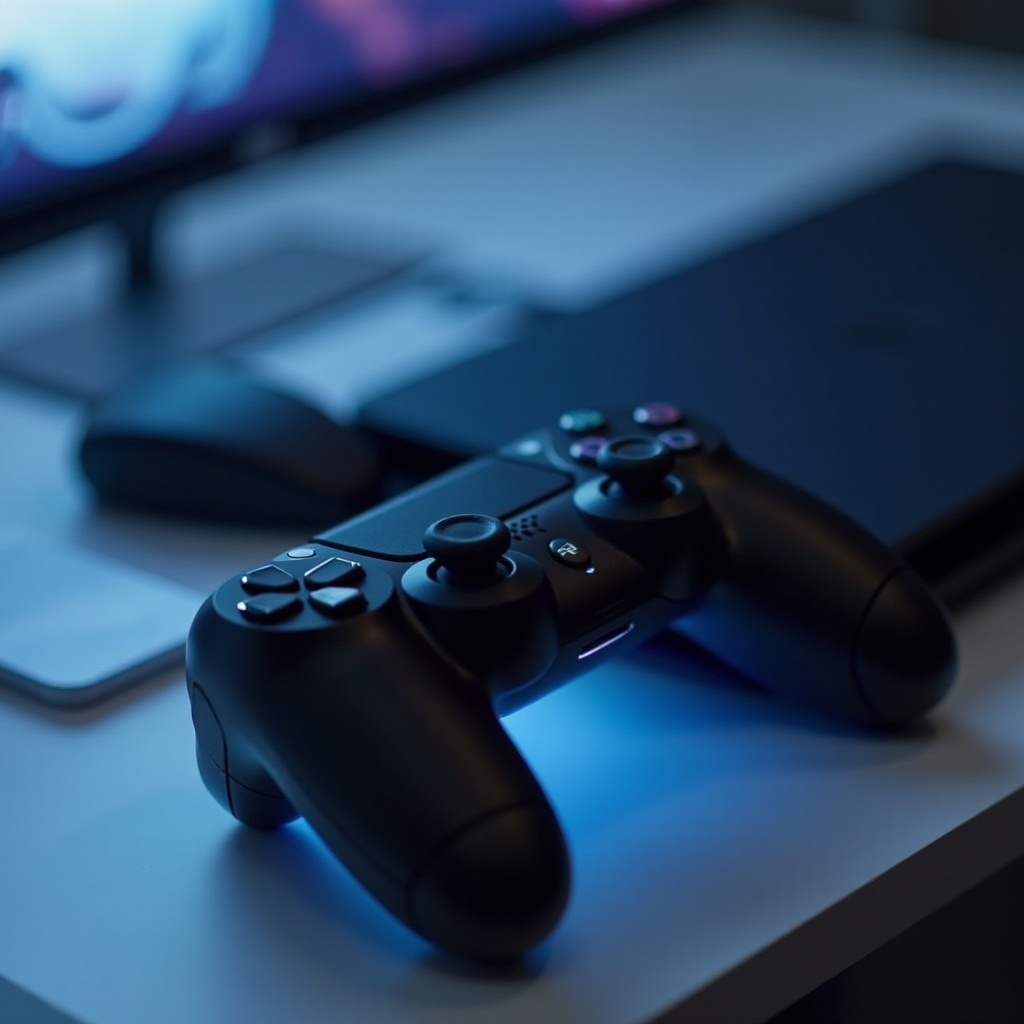
Understanding PS4 Controller Connectivity
Effective troubleshooting begins with grasping the DualShock 4 controller’s interfacing with the PS4 console. Employing both Bluetooth and USB, the controller encompasses seamless gaming through wireless technology and pairing/charging via USB.
Despite its advanced communication, hurdles such as low battery, obsolete software, or interfering devices can obstruct connectivity. Comprehending these facets armors us with the knowledge to tackle connectivity hurdles methodically.
How the DualShock 4 Connects to the PS4
Pressing the PlayStation button triggers a Bluetooth signal from the DualShock 4 to the console, establishing a connection if in proximity. Disruptions such as obstructions or electronic devices can hinder this seamless process, culminating in disconnection.
Common Connectivity Challenges
Connectivity isn’t always straightforward, facing hurdles like firmware glitches, non-responsive controls, or repeated disconnections. Grasping these issues steers us toward effective troubleshooting initiatives.
Initial Troubleshooting Steps
Let’s embark on simple yet pivotal steps to mitigate connectivity woes:
-
Charge the Controller: Ensure the controller’s battery is fully charged by connecting it via USB. Insufficient power can impede connectivity.
-
Restart Both Devices: Turn off the PS4 and disconnect its power for about a minute, similarly restarting the controller by using the back reset button next to the L2 button.
Should these measures fall short, our focus shifts toward advanced solutions.
Advanced Troubleshooting Techniques
In cases where issues persist, delving into more intricate solutions is necessary.
Conduct a Soft and Hard Reset
Reestablish the link by connecting the controller with a USB cable and pressing the PS button for a soft reset. A hard reset involves using a pin to press the controller’s backup reset hole near L2, for five seconds.
Use Safe Mode to Reconnect the Controller
Safe mode facilitates intricate troubleshooting. Power down the console, then hold its power button until hearing a second beep. Connect the controller via USB and select ‘Rebuild Database,’ refreshing vital system files.
Update PS4 System Software
Outdated software should not go unchecked. Navigate to ‘Settings’ > ‘System Software Update’ to ensure the latest version is installed, addressing potential connectivity shortcomings.
When attempts at advanced troubleshooting fail to yield results, concerns might tilt toward potential hardware impediments.
Dealing with Persistent Connectivity Issues
Prolonged connectivity issues might indicate problems originating from hardware components.
Explore Hardware Solutions
Switching USB cables might highlight issues with the existing connection. Trying the controller on a different PS4 can discern whether the fault lies with the controller or the console.
Verify USB Cable and Port Integrity
Examine USB ports for dirt or damage that might hinder connectivity. Regular cleanings ensure sound connections, while properly aligning cables promotes stability.
Moving from troubleshooting complexities, prevention stands as our next line of defense.
Preventing PS4 Controller Disconnection in the Future
By embracing preventative tactics, you can ward off future connectivity dysfunctions.
Maintain Regular Updates
Firmware and controller software benefit from timely updates, often addressing known issues that affect connectivity.
Minimize Bluetooth Interference
Limit exposure of your console to strong Bluetooth-emitting devices such as routers or microwaves, reducing interference and promoting stable connections.
Conclusion
As we’ve navigated through the depths of the ‘try connecting your device again’ conundrum, equipped with these strategies, you can remedy connectivity concerns while optimizing your gaming journey. Maintaining up-to-date systems and proper equipment handling remains pivotal in preserving trouble-free operations.
Frequently Asked Questions
Why does my PS4 controller keep disconnecting?
Your PS4 controller may disconnect due to low battery, outdated software, or Bluetooth interference. Ensure it’s charged, update the firmware, and reduce interference.
How can I reset my PS4 controller to factory settings?
To reset, use a pin to press the controller’s reset button on the back near the L2 button for 5 seconds. Then reconnect it to the PS4 using a USB cable.
What should I do if my PS4 controller won’t charge?
If your PS4 controller isn’t charging, inspect the USB cable and port for damage or dust. Try a different cable or port and ensure compatibility. If issues persist, contact Sony Support.