

 By
By Introduction
Resetting the toner on your Brother printer is a simple yet effective way to maintain optimal printing quality and prevent unnecessary expenses. When you encounter toner error alerts or notice that printouts are fading, it’s time to learn how to execute a toner reset. This guide will detail the process, ensuring you handle your printer with confidence and ease.
Understanding Brother Printer Toner Systems
Brother printers are staples in both homes and businesses due to their reliability and efficient performance. These printers operate using toner cartridges rather than liquid ink, which means they require a different maintenance approach. Understanding the specifics of Brother toner systems, including type compatibility with various printer models, is crucial for any user. This knowledge helps you select the correct toner and anticipate possible maintenance needs.
Signs You Need to Reset Your Toner
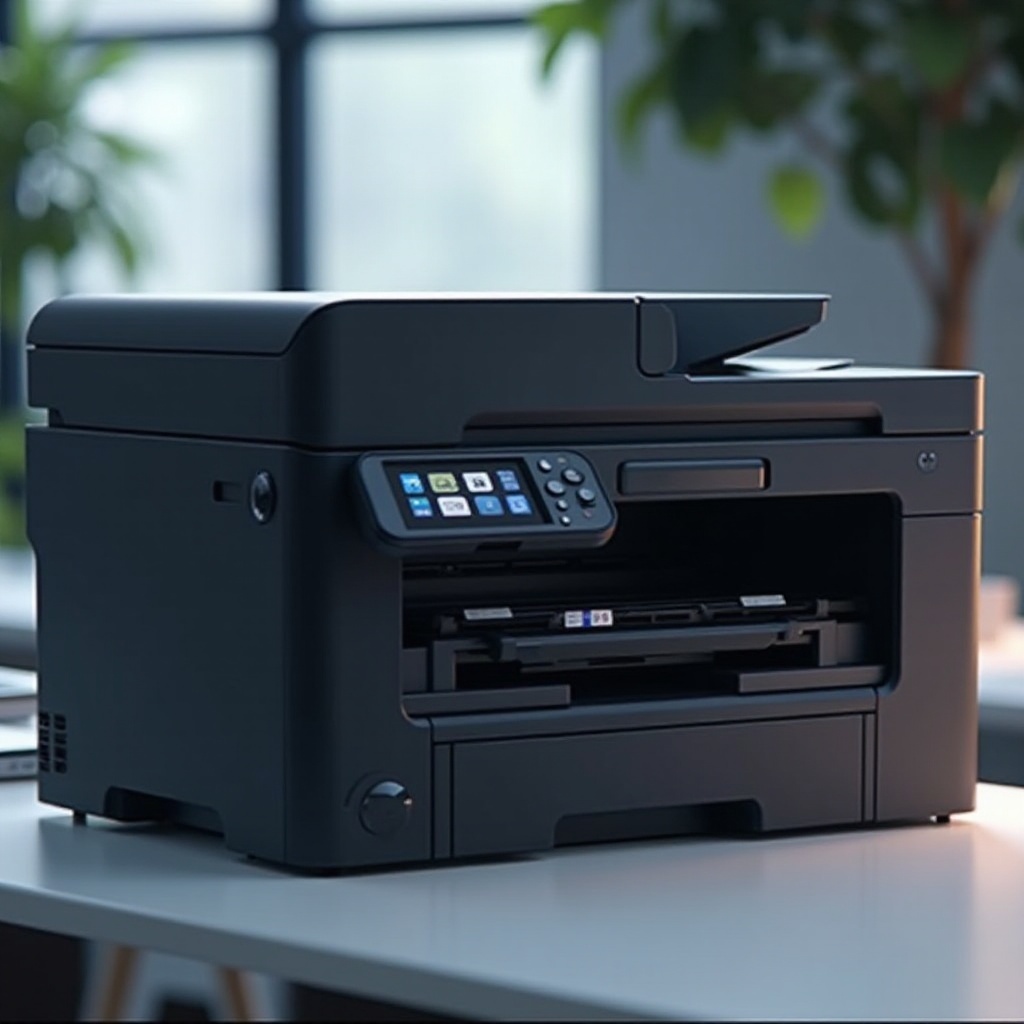
Recognizing when to reset your toner can vastly improve your printer’s efficiency and longevity. Look out for signs such as:
- Persistent Low Toner Messages: If your printer continually prompts for a toner change despite a recent replacement, it likely requires a reset.
- Deteriorating Print Quality: Fading text or streaks can be remedied by a toner reset.
- Printer Not Responding: A toner-related error might lock your printer, making a reset necessary.
Ignoring these indicators can lead to more significant problems. Addressing these symptoms early can preserve your printer and ensure consistent printing quality.
Preparing for the Toner Reset
Before beginning the reset process, it’s vital to prepare adequately. Gather your printer’s user manual if available, and verify the type of toner cartridge used. Ensure your printer is powered on and connected to a stable power source. This preparation minimizes mishaps and guarantees a smoother reset process.
Step-by-Step Guide to Resetting Toner on Brother Printers
Resetting toner cartridges in Brother printers can be done through two main methods. Choose the one best suited for your model:
Method 1: Using the Printer Menu
- Access the Menu: Press the menu button on your printer’s control panel.
- Navigate to Reset Options: Select ‘Reset’ or ‘Machine Info’ and proceed to ‘Reset Parts’ or ‘Toner Reset’.
- Choose Your Cartridge: Highlight the toner cartridge that requires resetting.
- Follow the Prompts: Adhere to the on-screen instructions to complete the process.
Method 2: Manual Reset Technique
- Power Down the Printer: Ensure the printer is off before proceeding.
- Open the Front Cover: Gently expose the printer’s interior compartment housing the toner.
- Use the ‘Go’ Button: Hold down the ‘Go’ button while powering the printer back on. Release it when the ‘Ready’ light appears.
- Complete the Process: Close the front cover to finalize the reset.
Both methods are effective, allowing you to choose based on preference and model compatibility.
Troubleshooting Common Reset Issues
Even with careful execution, issues can arise during a toner reset. Here are common problems and solutions:
- Issue Not Resolved: Double-check all reset steps, ensuring correct cartridge selection, especially with menu methods.
- Persistent Error Messages: Restart your printer and check for any available firmware updates.
- Technical Malfunctions: In cases of hardware issues, consulting a professional is recommended to avoid unintended damage.
Proactively identifying and addressing these problems ensures your printer resumes optimal function swiftly.
Maintenance Tips to Extend Toner Life
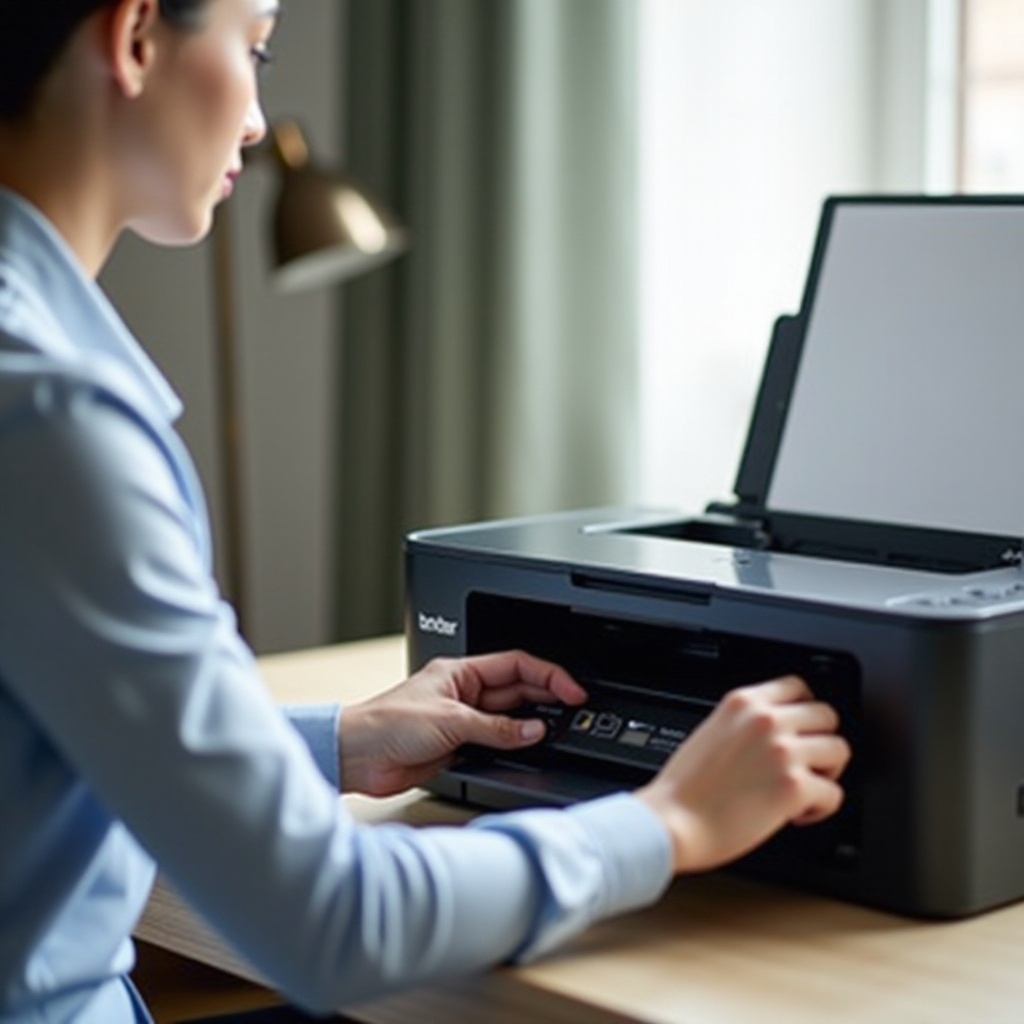
Resetting toner is only one part of printer maintenance. Incorporate these practices to prolong toner life:
- Store Toner Properly: Keep cartridges in cool, dry environments, safe from heat and direct sunlight.
- Maintain Regular Use: Routine printer use keeps toner fresh and flowing seamlessly.
- Conduct Regular Cleanings: Clean printer interiors periodically to reduce blockages and ensure high-quality prints.
Following these guidelines maximizes toner utility and enhances printer performance.
Conclusion
Knowing how to reset the toner on a Brother printer empowers you to handle everyday printing challenges effectively. This guide equips you to identify when a reset is necessary, perform it accurately, and maintain your printer thereafter. Routine maintenance and attention to these details ensure that your printer operates efficiently and economically over time.
Frequently Asked Questions
Why does my Brother printer keep asking for a toner reset?
This issue may be caused by improper toner installation or an incomplete previous reset. Make sure the toner is correctly installed and follow reset instructions specific to your model.
Can resetting the toner damage my Brother printer?
When done correctly, resetting the toner should not harm your printer. However, improper methods or steps can potentially cause problems, so always follow the recommended procedures.
Is it necessary to update printer firmware after a toner reset?
Though not always required, updating printer firmware can address unresolved issues and enhance compatibility with toner cartridges. It’s advisable if problems persist.