

 By
By Introduction
The PlayStation controller is a vital part of your gaming experience, and when the PS button doesn’t respond, the frustration is palpable. This button serves not only as the gateway for seamless navigation within the game but also facilitates transitions between different console applications. Whether you are in the middle of an exciting game or simply trying to manage settings, an unresponsive PS button can disrupt your activity. This guide will walk you through understanding the root causes and demonstrate effective solutions to rectify the problem promptly.
Understanding the Issue
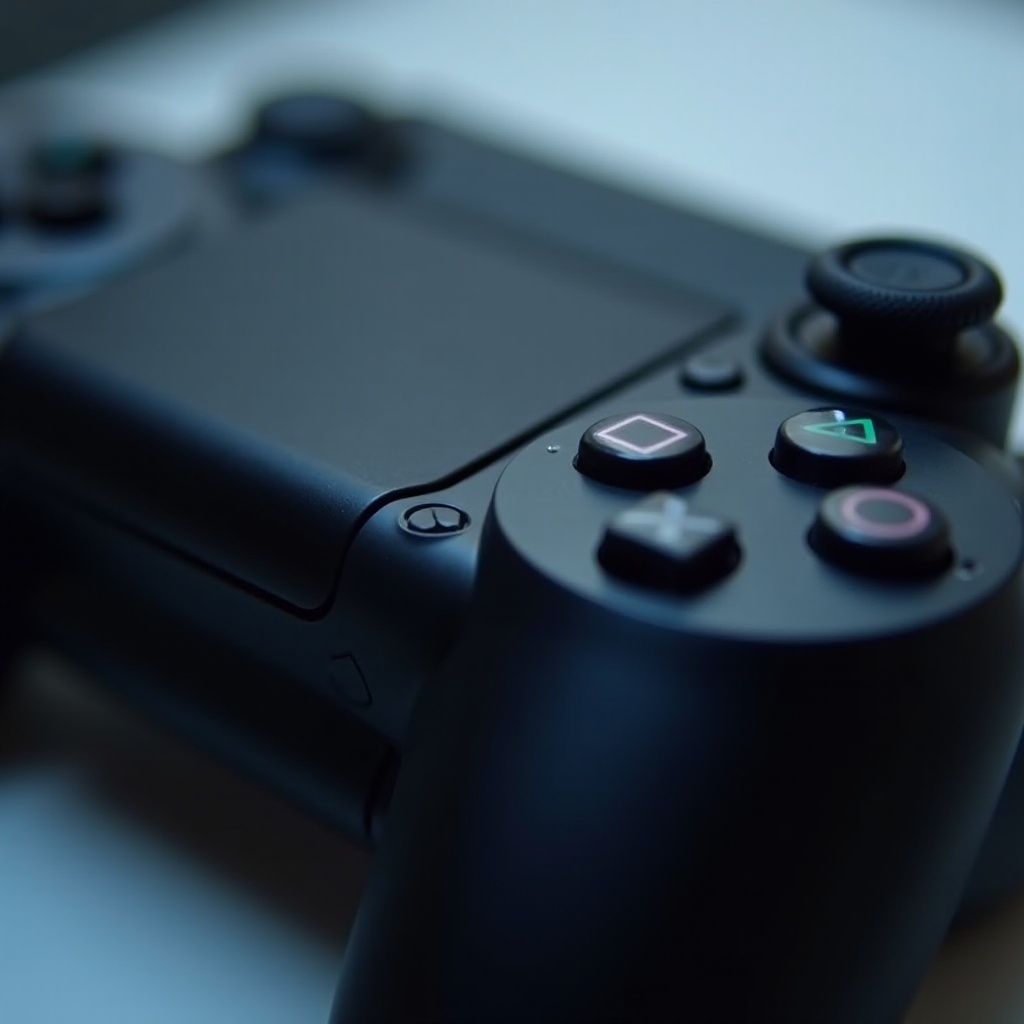
To address the non-responsiveness of the PS button, it is crucial first to understand the scope of the issue. Symptoms usually include the button’s failure to bring up the home screen or sporadic operation.
-
Signs of a Malfunctioning PS Button: You might notice that pressing the PS button doesn’t consistently return you to the home screen, or it works only intermittently. Gamers frequently report delayed responses or a complete failure to prompt any functions.
-
Differentiating Between Hardware and Software Issues: It’s vital to identify whether the problem stems from a hardware malfunction or software glitch. Hardware issues might involve physical damage or wear, while software problems could be linked to outdated firmware or incorrect settings.
Knowing the distinction helps in tailoring an appropriate troubleshooting approach. If software is the culprit, basic troubleshooting can potentially resolve the issue. For hardware faults, a more in-depth solution is needed.
Basic Troubleshooting Steps
Before diving into complex fixes, some basic steps may help restore your controller’s functionality.
-
Restart Your PlayStation Console: A straightforward reboot can often resolve various technical glitches. Shut down your console fully, wait for a few minutes, and restart it. Check to see if the PS button functions correctly following this reset.
-
Reconnect the Controller to the Console: Disconnect and reconnect your controller to re-establish the connection. Utilizing a USB cable to directly link the controller to the console might help reset the connection and address minor complications.
-
Check for Controller Battery and Charge: Often overlooked, battery life can be pivotal. Ensure your controller is fully charged, as low power can lead to erratic behavior.
Executing these simple steps might quickly fix the issue. If difficulties persist, examining further into the problem is necessary.
Advanced Troubleshooting Solutions
If basic troubleshooting does not suffice, exploring advanced steps is the next logical approach.
-
Updating Controller Firmware and PlayStation System Software: Compatibility issues could be the result of outdated firmware. Navigate to the settings menu on your console and verify that both the system and controller are updated to their latest versions.
-
Resetting the Controller and Rebuilding the Console Database: You can reset your controller by finding the small reset button on its back, often located near the L2 button, and pressing it for a few seconds with a pin. For a more systemic approach, enter the console’s safe mode and select ‘Rebuild Database,’ which can address software-related issues without erasing your data.
-
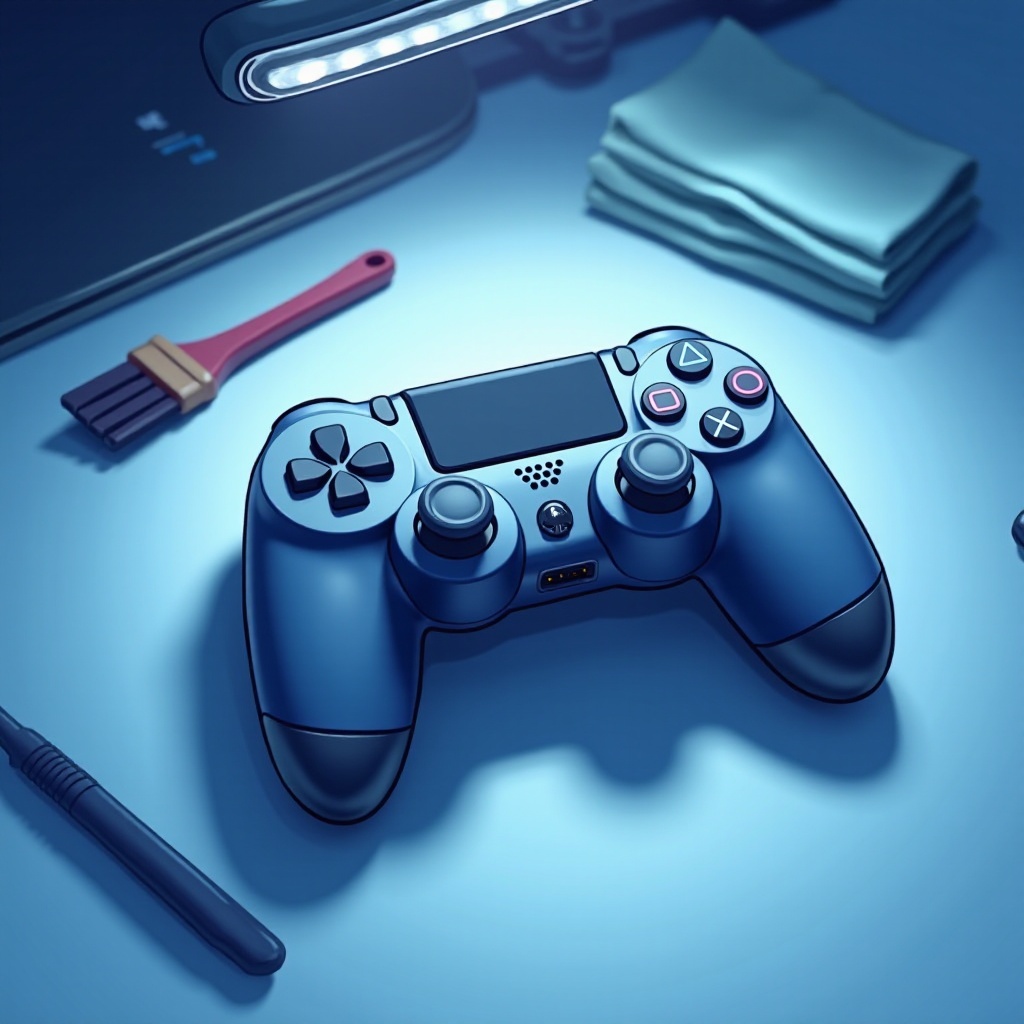
Inspecting the PS Button for Physical Damage: Physical inspections might reveal issues such as dust or debris hindering the button’s operation. Carefully clean around the button with a gentle, dry cloth, ensuring no components are damaged.
Working through these advanced solutions can help determine if the issue is complex, possibly necessitating professional help.
Deciding When to Seek Professional Help
Recognizing when to call in professional help is essential to avoid exacerbating the issue.
-
Evaluating the Need for Controller Repair or Replacement: If the PS button issue continues despite troubleshooting efforts, professional repair may be required. Consider a replacement if repair costs outweigh the value.
-
Contacting PlayStation Customer Support: Consulting customer support can offer specific insights or solutions tailored to your unique situation. They can recommend repair options or confirm if your console is covered by a warranty.
Making an informed decision regarding professional assistance will prepare you for the subsequent steps, whether through repair or considering new controller alternatives.
Preventive Measures and Maintenance Tips
Preventive care is crucial to conserve the functionality of your controller and avert future hassles.
-
Proper Care for Your Controller and Console: Ensure your equipment is stored in a clean, dry area. A routine cleaning can prevent dust accumulation, which might lead to electrical problems.
-
Ensuring Regular Software Updates: Develop a habit of regularly checking for and installing updates on your system and controllers. Keeping them updated can fix bugs and preserve functionality, preventing issues like an unresponsive button.
These preventive actions are beneficial in enhancing the lifespan of your equipment and providing you a trouble-free gaming adventure.
Conclusion
A non-responsive PS button doesn’t have to spell the end of your gaming session. By comprehending the problem and following troubleshooting guidelines, you can efficiently pinpoint and address the issue. Routine maintenance and proactive care are vital for avoiding such obstacles in the future, allowing your gaming sessions to continue smoothly and uninterrupted.
Frequently Asked Questions
Why is my PS button not working after a recent update?
Recent updates might not have installed correctly, or some settings may have changed. Try performing another update or reset your controller settings.
Can I fix a non-responsive PS button myself, or do I need professional help?
Most issues can be resolved with basic or advanced troubleshooting steps at home. However, if problems persist, consider professional repair services.
How often should I update my controller’s firmware and software to avoid this issue?
Regularly check for updates, ideally once a month, or whenever prompted by your console, to ensure your system operates smoothly.