

 By
By Introduction
Upgrading your Xbox One with an SSD is one of the most effective ways to enhance your gaming experience. The improved speed and performance offered by SSDs give gamers quicker load times and smoother gameplay, providing a more immersive and efficient experience. Whether you’re new to this or a seasoned expert, understanding how to effectively implement an SSD in your Xbox One is key to maximizing its potential. This guide offers a comprehensive walkthrough of the process, ensuring a seamless transition.
Why Consider an SSD Upgrade for Xbox One?
The advantages of switching from a traditional hard drive to an SSD are numerous and significant.
-
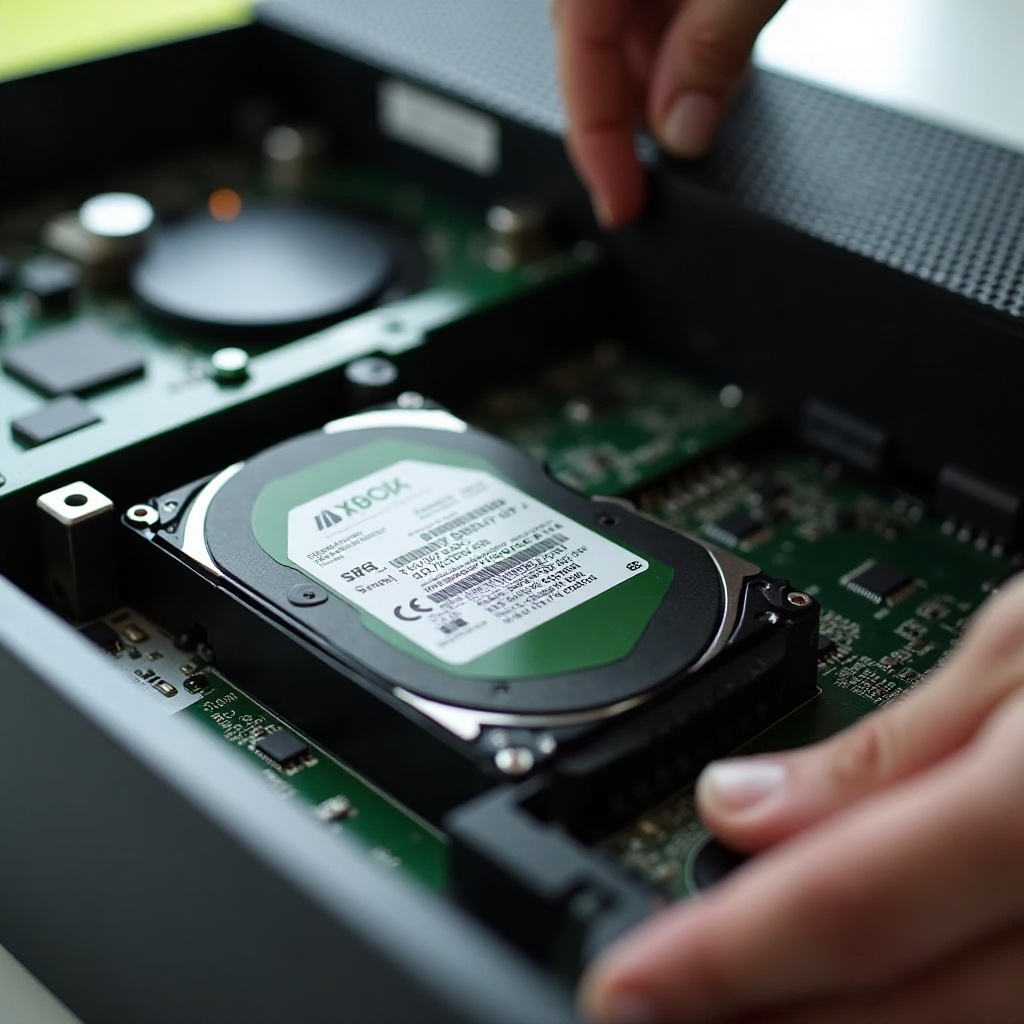
Understanding the Benefits of SSD Over HDD: SSDs are renowned for their speed and reliability. Unlike HDDs, SSDs have no moving parts, which reduces the risk of mechanical failure and offers faster data retrieval.
-
Speed and Performance Enhancements: Upgrading to an SSD can significantly cut down load times and improve in-game performance. Expect faster transitions, smoother gameplay, and reduced waiting periods.
These performance upgrades make a compelling case for transitioning to an SSD. With these benefits in mind, let’s take a closer look at how to choose the right SSD for your Xbox One.
Choosing the Right SSD for Your Xbox One
Selecting the right SSD is crucial to ensure compatibility and optimal performance.
-
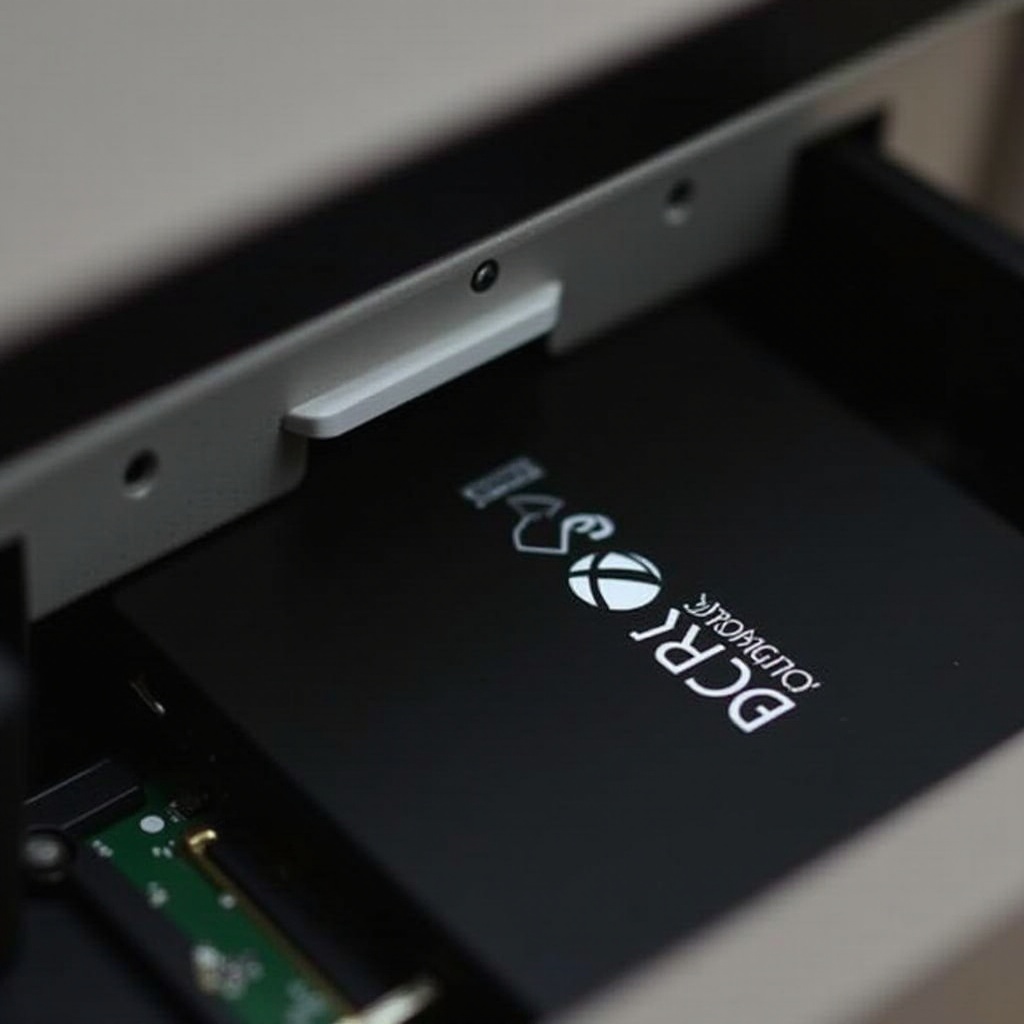
Key Factors to Consider: When choosing an SSD, consider factors such as storage capacity, read/write speeds, and compatibility with your Xbox One. Make sure the SSDs’ specifications align with your gaming needs.
-
Recommended SSD Models for 2024: As of 2024, top picks include the Samsung 860 EVO and Crucial MX500. These models are praised for their performance and reliability, making them ideal choices for Xbox One upgrades.
With your SSD selected, the next step is to prepare for the installation process.
Preparing for the Upgrade
Preparing adequately will ensure a smooth installation process.
-
Necessary Tools and Materials: Gather a small Phillips screwdriver, the chosen SSD, and an external drive for data backup. Before starting, back up important data to avoid any loss during the installation process.
-
Safety Precautions: To prevent static damage, ground yourself before handling the SSD. Ensure the console is disconnected from the power source during installation.
Once you’ve prepared, you’re ready to start the installation. Follow these steps to correctly install your new SSD into your Xbox One.
Step-by-Step Guide to Installing an SSD in Your Xbox One
Here’s a comprehensive guide to replacing your Xbox One’s HDD with an SSD:
- Removing the Old Hard Drive:
- Power down the Xbox One, disconnect all cables, and place the console in a flat area.
- Use a Phillips screwdriver to open the console casing carefully and remove the drive bracket screws.
-
Disconnect the drive from the SATA interface and lift it out of the bay.
-
Installing the New SSD:
- Connect the new SSD to the SATA interface, ensuring it sits securely.
-
Place the SSD into the drive bay and secure it with screws.
-
Reassembling and Testing Your Console:
- Reattach the console casing and secure it with screws before reconnecting all cables.
- Power on the Xbox One, check for SSD detection, and format it through the system settings if necessary.
Your SSD is now installed, bringing a significant performance boost. To maintain this enhanced performance, it’s essential to follow some tips.
Post-Upgrade Tips and Tricks
With your new SSD installed, here are some tips to keep it running smoothly:
-
Managing Your Xbox One Storage Space: Regularly review installed games and delete those you no longer need to keep the SSD efficient.
-
Maintenance for Optimal Performance: Keep your SSD firmware up to date and ensure your console receives regular software updates.
Even with effective installation and maintenance, issues can occasionally arise. Let’s address how to handle potential challenges.
Potential Challenges and Troubleshooting
While installation is usually straightforward, issues can occur. Here’s how to manage them:
-
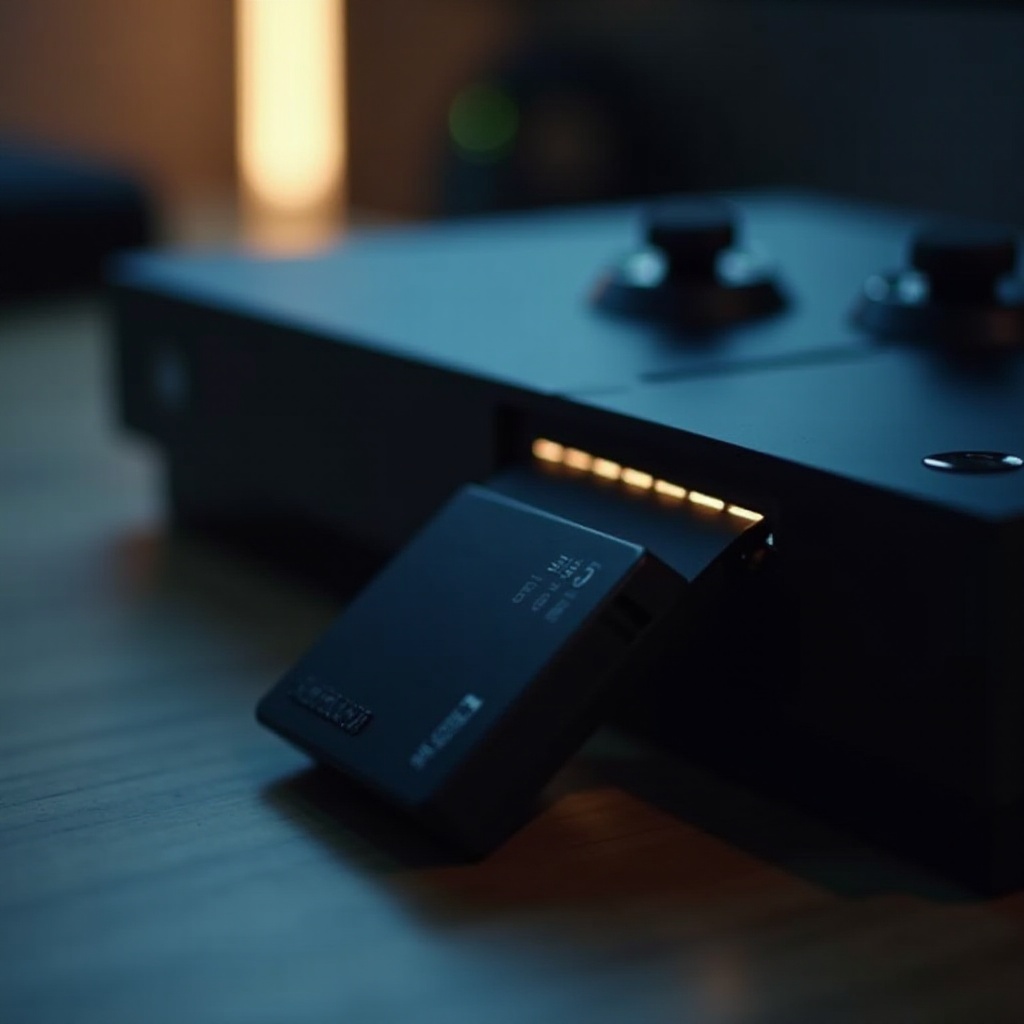
Common Issues During Installation: If the console doesn’t recognize the SSD, double-check the physical connections and power cycle your console.
-
Solutions and Fixes: If issues persist, consult the SSD manufacturer’s support resources or communities for troubleshooting tips.
By understanding these potential challenges, you’ll be able to effectively resolve any issues that arise, ensuring optimal performance from your SSD. Now, let’s summarize the impact of this upgrade.
Conclusion
Upgrading your Xbox One with an SSD provides a substantial boost in speed and performance. Faster load times and improved responsiveness can transform your gaming experience, making sessions more enjoyable and efficient. Following the guidance in this article, you can confidently state that your Xbox One is operating at its best potential with the new SSD.
Frequently Asked Questions
Is the SSD upgrade reversible if I encounter issues?
Yes, you can reinstall the original hard drive if necessary, assuming you haven’t disposed of it.
Will upgrading to an SSD void my Xbox One warranty?
Officially, any hardware modification can void your warranty, but this varies by warranty terms and the service provider.
How much faster will my Xbox One load games after an SSD upgrade?
Many users report significantly reduced load times, potentially cutting them by half or more, depending on the game.